Device detail page
Opened from «Device management → Devices» by clicking a tablet. Most actions on this page affect only that one device.
| Button | When it can be used | What happens | Where to check | OK |
|---|---|---|---|---|
| 01Back | Always available | Returns to the device list | Nothing to check | |
| 02Move | First pick a class in the dropdown next to it that is different from the current one, otherwise the button does not respond | Says «Moved» and tells you how many policies specific to the old class were withdrawn | The «Class» field at the top shows the new class; a move task appears in «Task log» below | |
| 03Start class (40 min) | The account needs the «operator» permission; the device must belong to a class; no class may be in progress (the button is hidden during a class) | Asks for confirmation, then says «Class started» | This button becomes «End class»; only then do the classroom features (watch screen, capture whole class) become available | |
| 04End class | Shown only while a class is in progress | Says «Class ended» | The button turns back into «Start class»; from then on watch screen and capture whole class are refused (compliance requirement: student screens are not provided outside class hours) | |
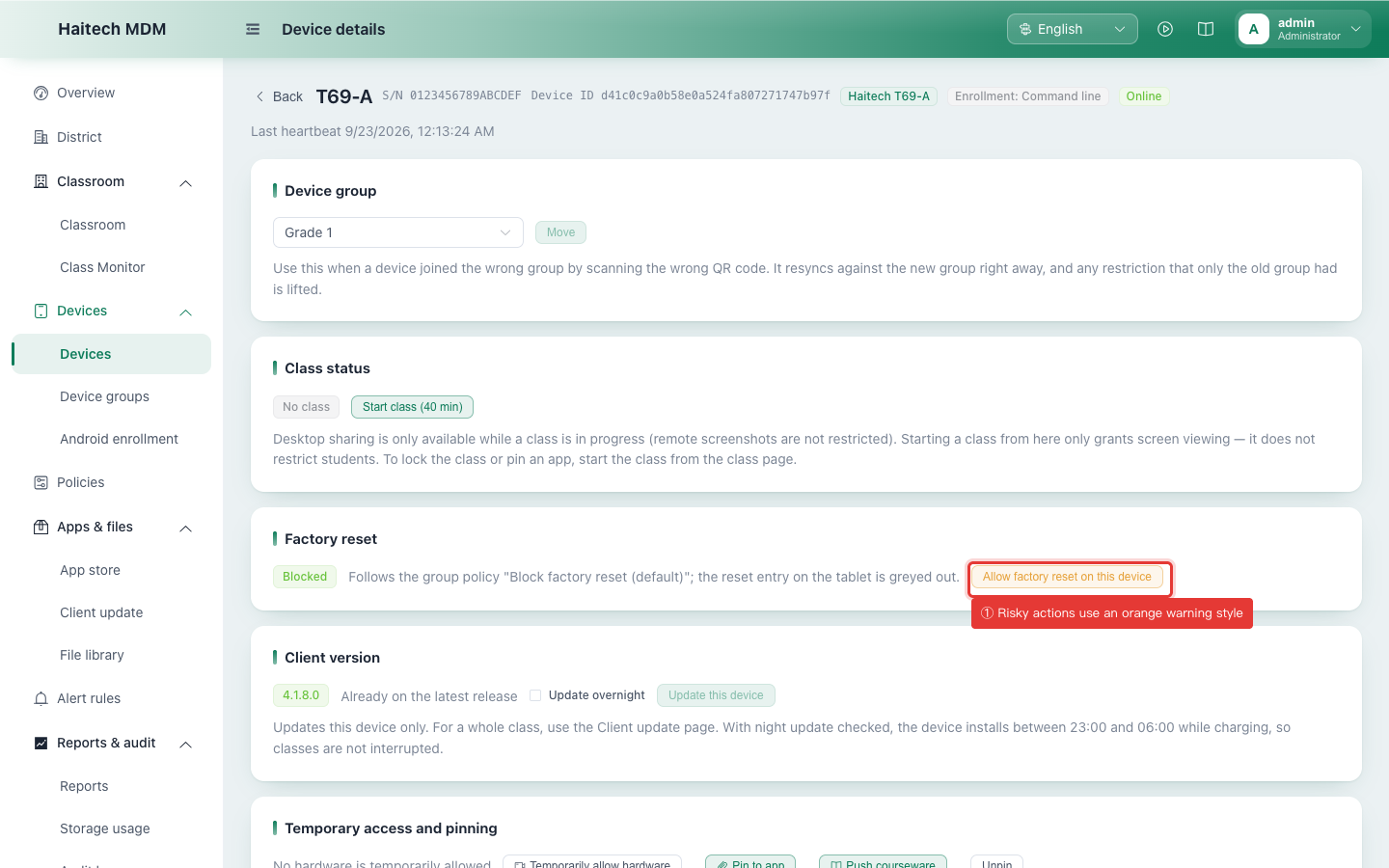
| 05Allow factory reset on this device | The account needs the «operator» permission. The button uses an orange warning style, set apart from the green ordinary buttons on the same page | Asks for confirmation; after confirming, the card changes from «Blocked» to «Allowed» | On the tablet, «Settings → Reset» is no longer greyed out. ⚠️ Once allowed, the student can wipe the device: click «Block again» when done | |
| 06Block again | The account needs the «operator» permission; shown only while it is allowed | Withdraws the exception above | The button turns back into «Allow factory reset…»; on the tablet the reset option is greyed out again | |
| 07Update this device | There must be a client version newer than the one on the device; when already up to date the button is grey and does not respond | Says «Pushed x.x.x» or gives the reason for failure per device | An update task appears in «Task log»; once the device finishes updating, the client version number on this page changes | |
| 08Temporarily allow hardware | Always available (opens a dialog) | A dialog opens where you pick camera / microphone / Bluetooth / USB / file transfer and memory card, for 10, 20 or 45 minutes | After confirming, «Withdraw temporary access» appears on this page; restrictions come back automatically when the time is up. Items that were not restricted, or that have a permanent exception, are skipped | |
| 09Revoke temporary access | Shown only while some temporary access is active | Asks for confirmation, then says how many items were withdrawn | The «Withdraw temporary access» button disappears; that hardware is restricted again on the tablet | |
| 10Pin to an app | Always available (opens a dialog) | A dialog opens: pick an app or type the package name, for 15, 40 or 90 minutes | The student tablet is locked inside that app and is released automatically when the time is up. Requires client 4.1.3.8 or later | |
| 11Unpin | Always available, but if the device is not pinned, clicking it changes nothing | Asks for confirmation, then says it has been unpinned | The tablet can return to its home screen; if it is still locked, check the receipt for that task in «Task log» | |
| 12Push courseware | Always available (opens a dialog); the courseware must be uploaded to «File library» first | A dialog opens: the source can be a «web address» or the «file library», and you can set a title | The student tablet opens it immediately in the client's own viewer: no browser is needed and it works even when the browser is hidden; the student can close it with the button in the top right corner | |
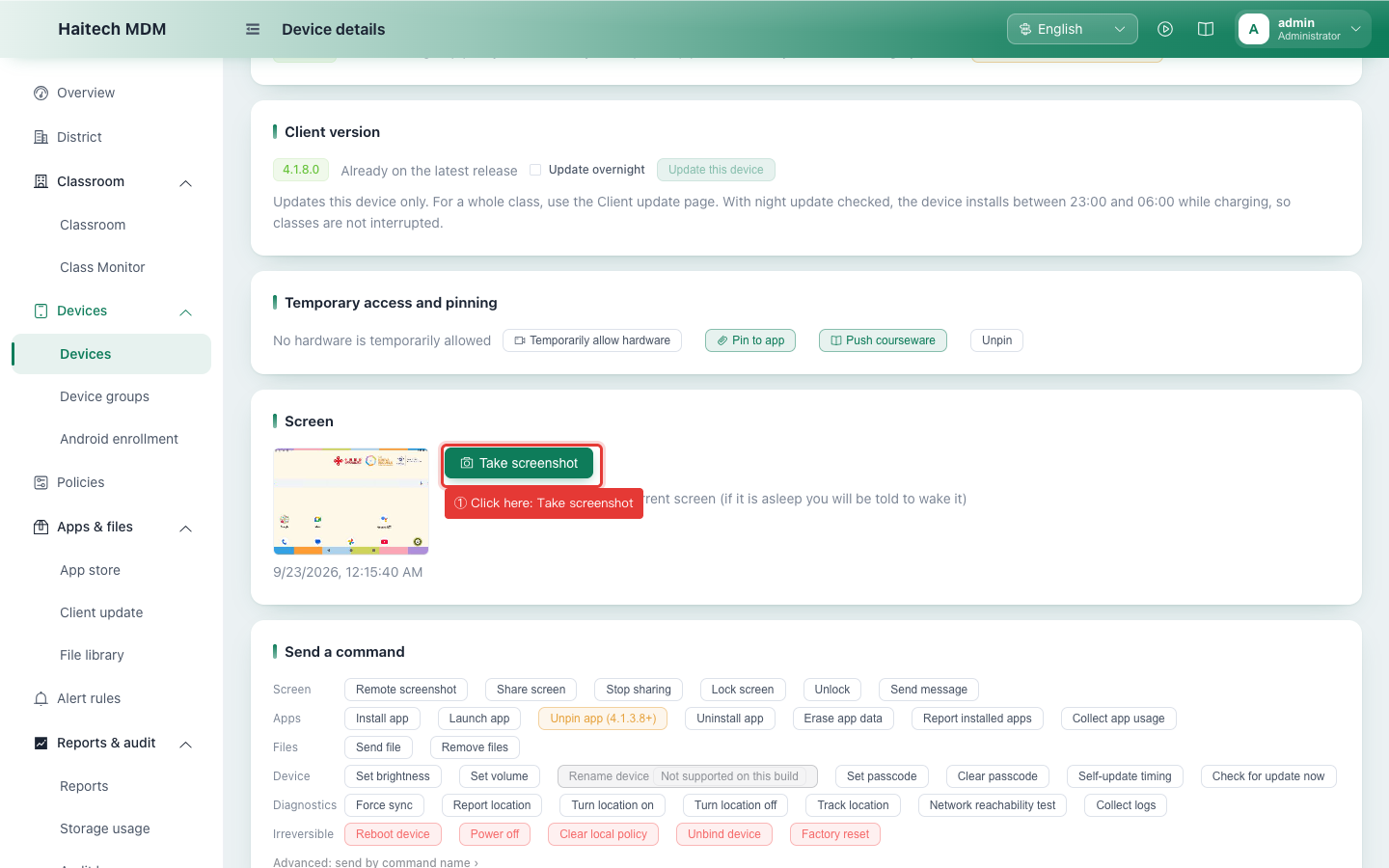
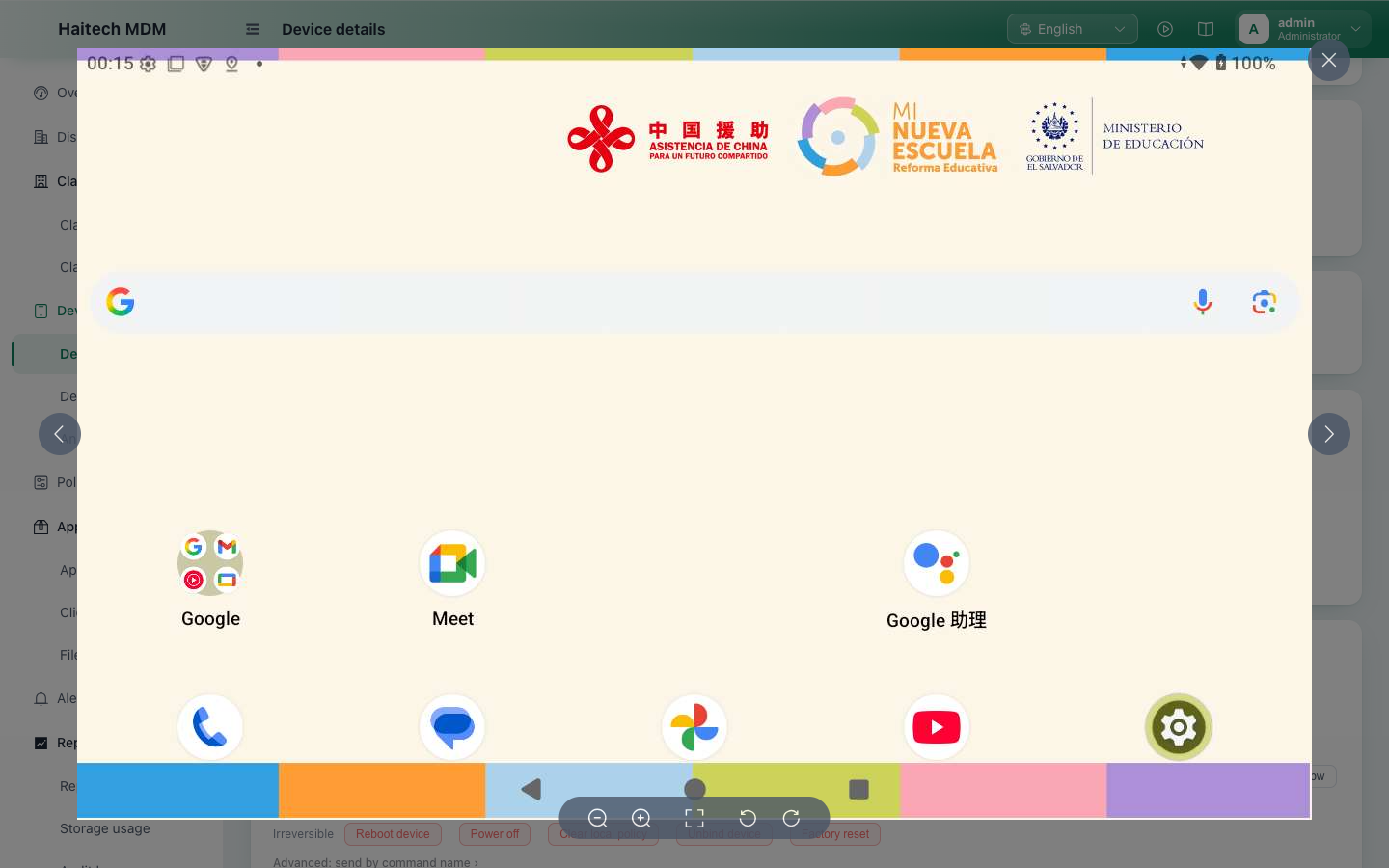
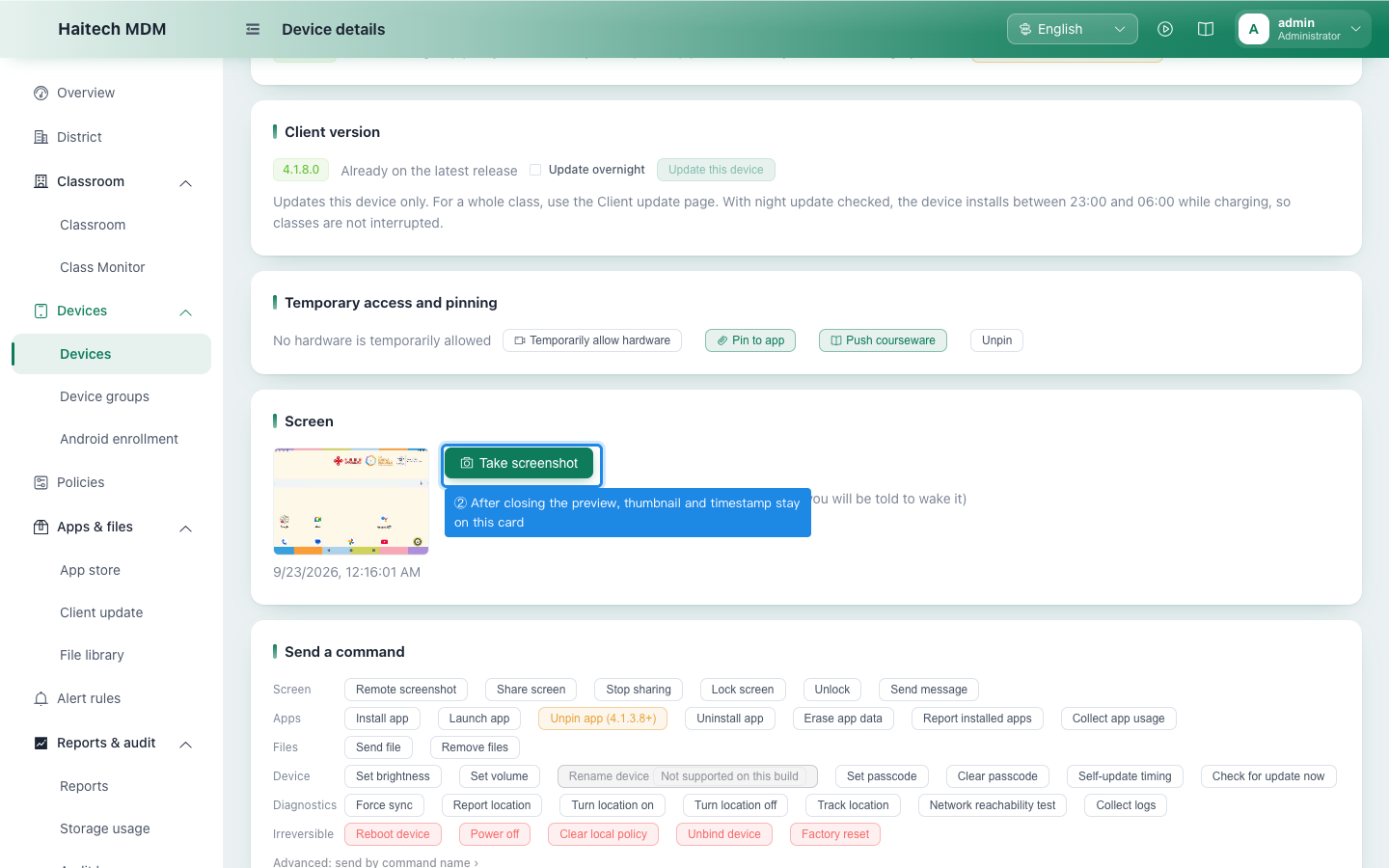
| 13Take screenshot | The account needs the «operator» permission; the device must be online (if it is offline you are told right away instead of waiting) | The button spins and, after ten-odd seconds, a full-screen preview opens by itself showing what is on the tablet right now | After closing the preview, the thumbnail and capture time stay in the «Screen» card at the top of the page (that card sits outside the tabs and is always visible). Past captures are in the «Captures and files» tab, which has another button of the same name | |
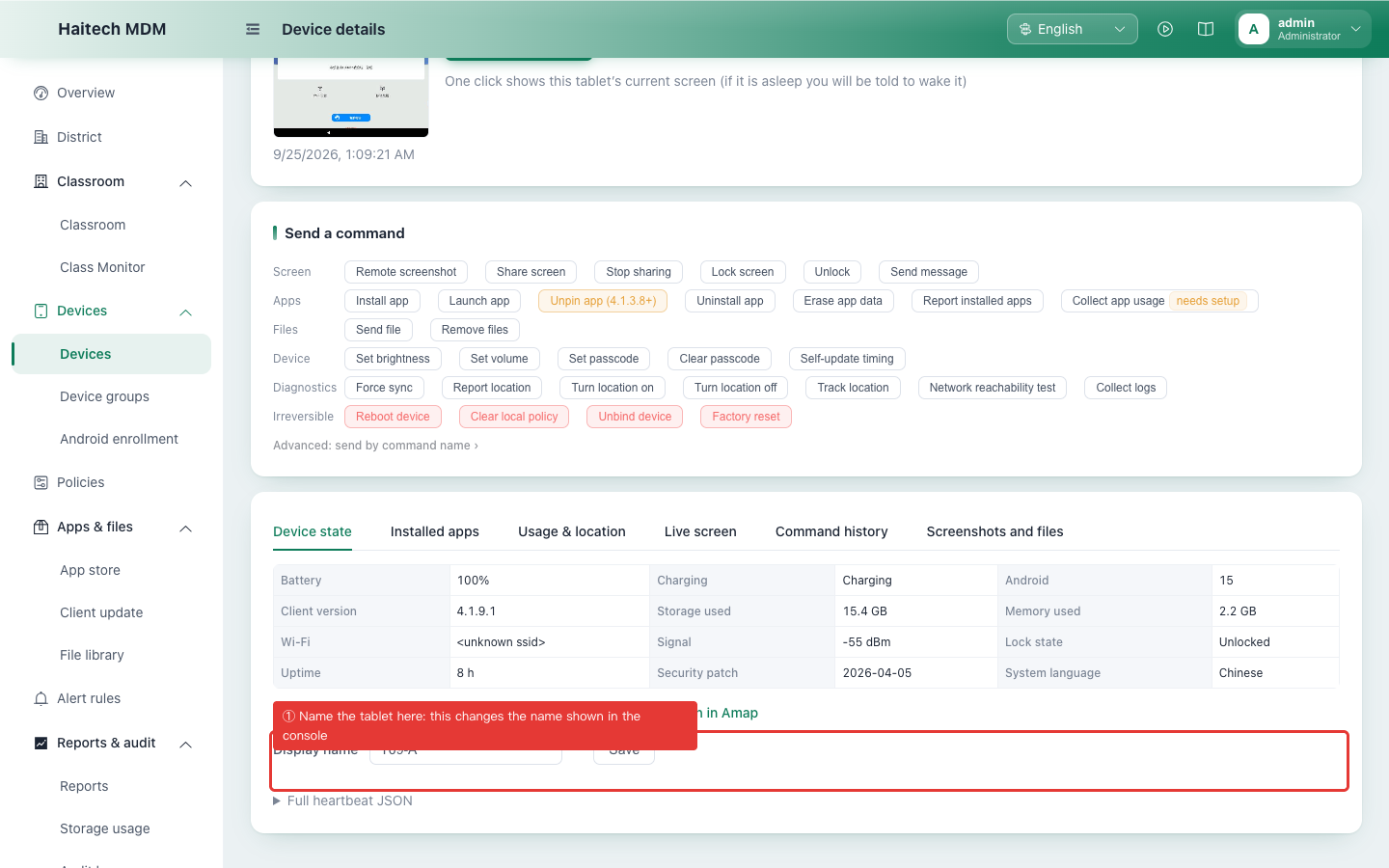
| 14Save | At the bottom of the «Device status» tab; it changes the name shown in the console. The tablet's own system device name cannot be changed (Android does not allow device-management apps to change it), so the command panel has no «Change device name» command | Says «Saved» | The page title and the name in the device list change; the tablet's own system device name does not |
Classroom page
Reached from «Classroom management → Classroom» after picking a class. Actions on this page affect the whole class.
| Button | When it can be used | What happens | Where to check | OK |
|---|---|---|---|---|
| 15Start class | The account needs edit permission; pick a class at the top first (with no class selected, no button responds) | A dialog opens: set the class length and confirm | The end time of this class appears at the top; «End class» and «Extend» become available | |
| 16Lock class | Pick a class first | Says «Sent to N/M devices» (M is the class size, N the successful pushes) | The result is on the student tablets: their screens are locked. The console only shows how many devices it was sent to; if one did not lock, check the receipt in «Task log» on that device's detail page | |
| 17Unlock | Pick a class first | As above: says «Sent to N/M devices» | The student tablets work normally again | |
| 18Screenshot class | Pick a class first. The button is active at all times, but compliance requires that student screens are not provided outside class hours: clicking it with no class in progress still sends the command, yet no images come back | Says «Sent to N devices, M arrived immediately». It jumps to «Classroom monitoring» only when at least one device arrives immediately; with M = 0 the page does not move, which looks like nothing happened | On the «Classroom monitoring» page it jumps to. If it does not jump, look at M in the message first: M = 0 means no device was online at that moment — check that the devices are online and that the class has actually started | |
| 19End class | Pick a class first; a class must be in progress | Asks for confirmation, then says on how many devices the class settings were withdrawn | The class info at the top disappears; from then on watch screen and capture whole class are refused | |
| 20Extend | Pick a class first; a class must be in progress | Asks how many minutes to add and, after confirming, shows the new end time | The end time shown at the top has moved later | |
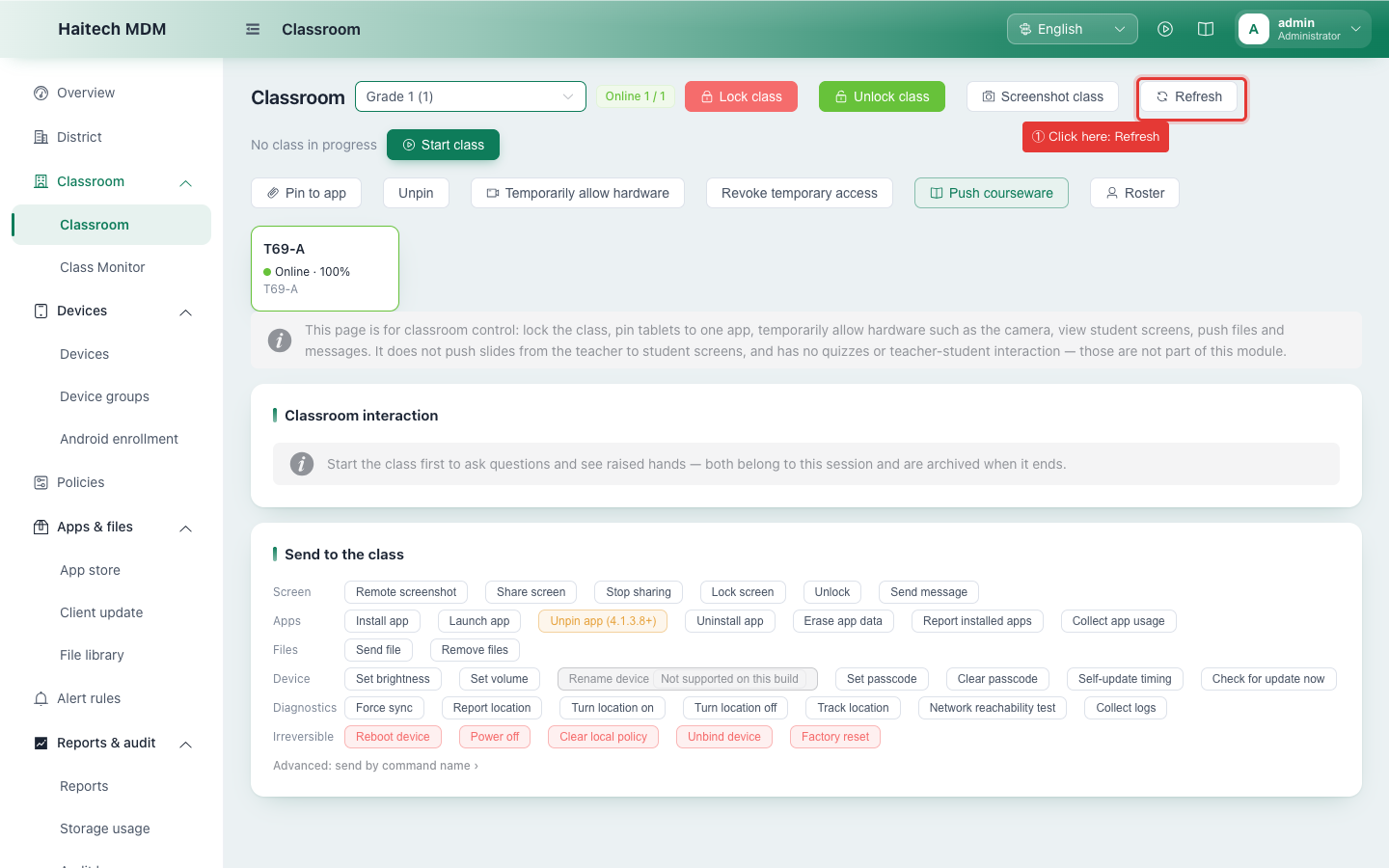
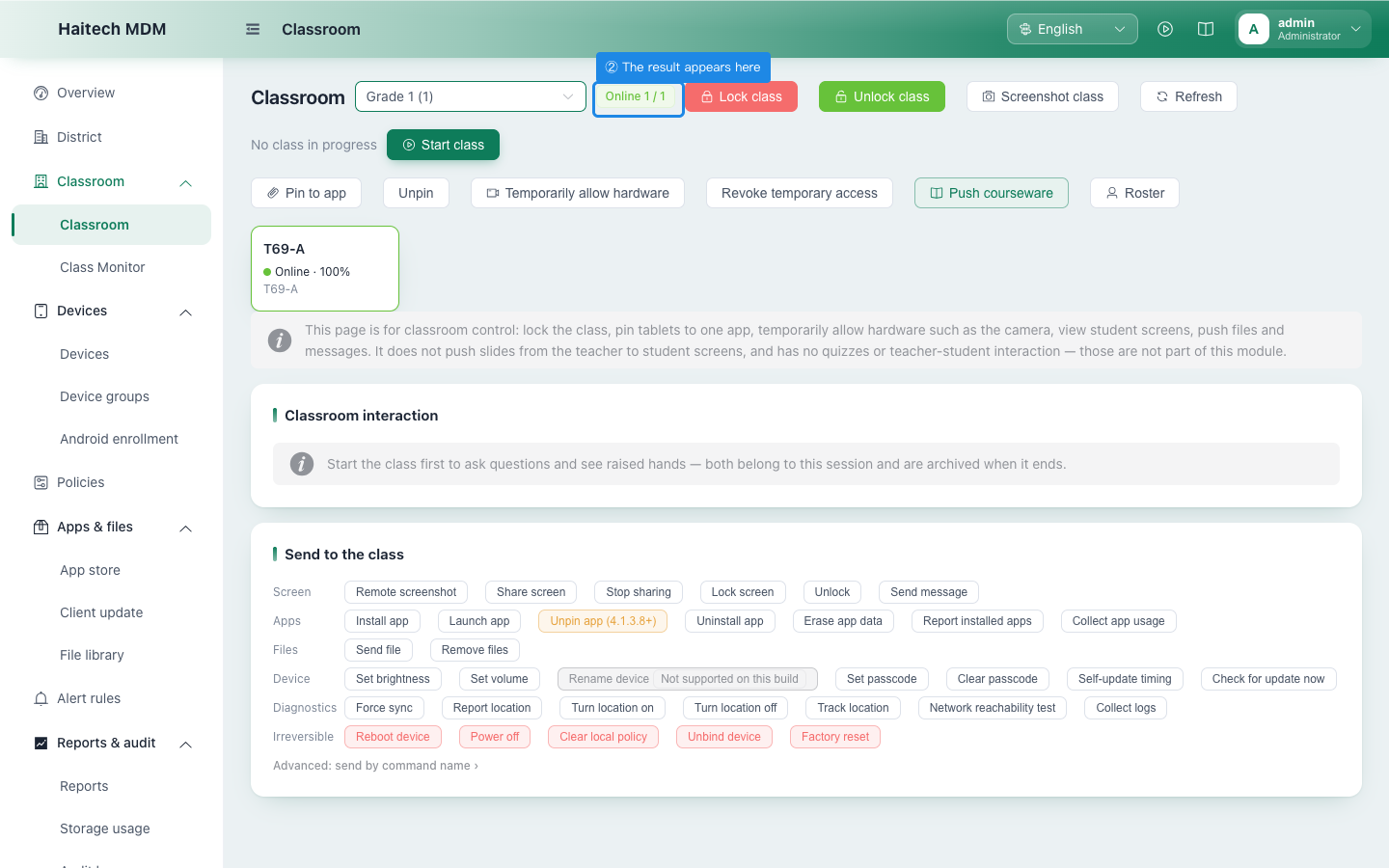
| 21Refresh | Pick a class first | Reads the class's device state again, with no popup message (no message is the normal outcome, not a dead button) | The «Online N/M» next to the title and the connection state and battery on the device cards below all update together | |
| 22Pin to an app | Pick a class first | Pick an app in the dialog and confirm; it says on how many devices it worked | The student tablets are locked inside that app; for any that did not take effect, check «Task log» on that device's detail page | |
| 23Unpin | Pick a class first | Asks for confirmation, then says on how many devices it was removed | The student tablets can return to their home screen | |
| 24Temporarily allow hardware | Pick a class first | Pick the hardware and duration in the dialog and confirm | «Withdraw temporary access» appears; it is withdrawn automatically when the time is up, no need to do it by hand | |
| 25Revoke temporary access | Pick a class first; some temporary access must be active | Asks for confirmation, then says on how many devices it was withdrawn | That hardware is restricted again on the student tablets | |
| 26Push courseware | Pick a class first; the courseware must be uploaded to «File library» | Pick the courseware in the dialog and confirm | It opens automatically on the student tablets; for any that did not open, check the receipt in «Task log» on that device | |
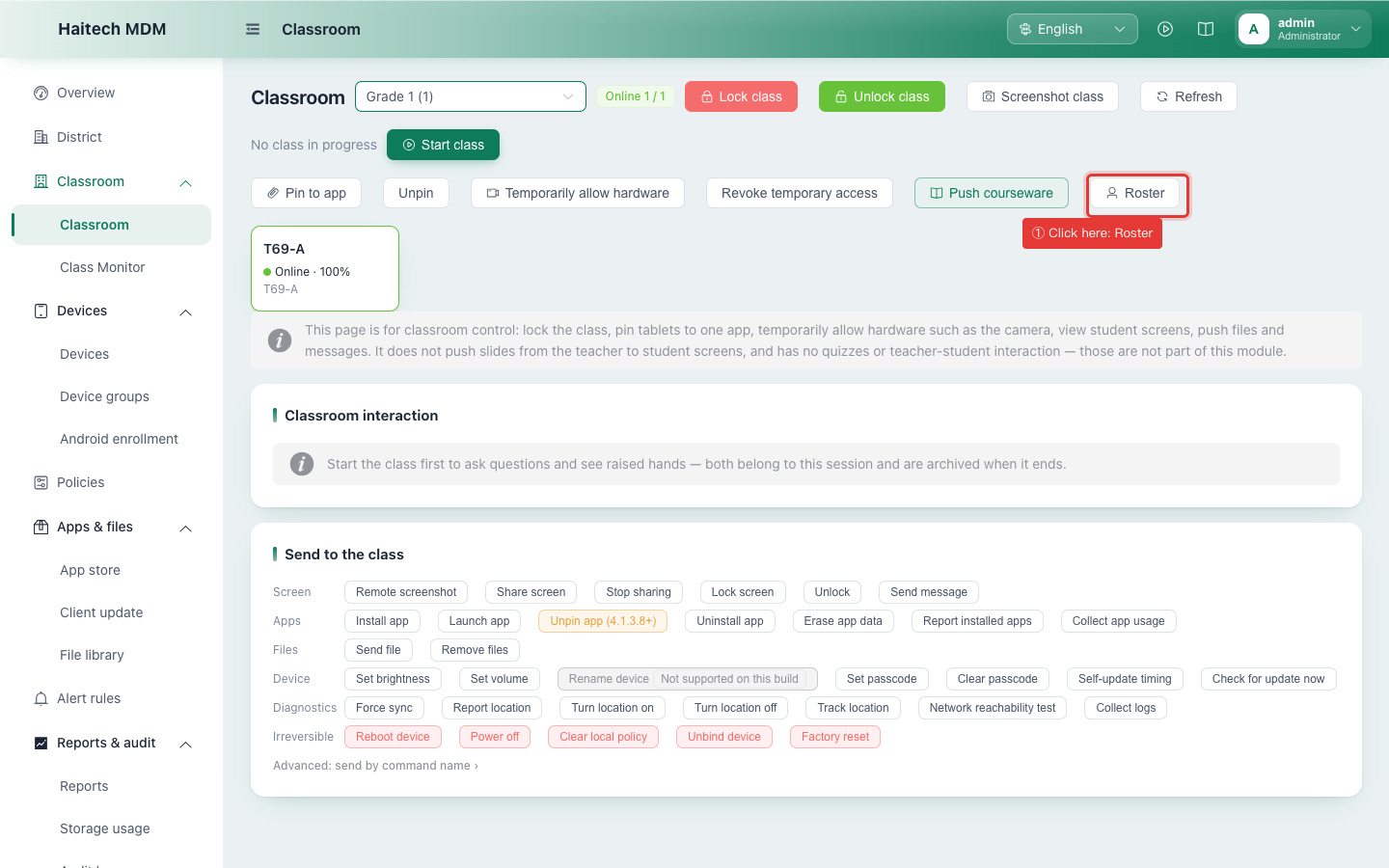
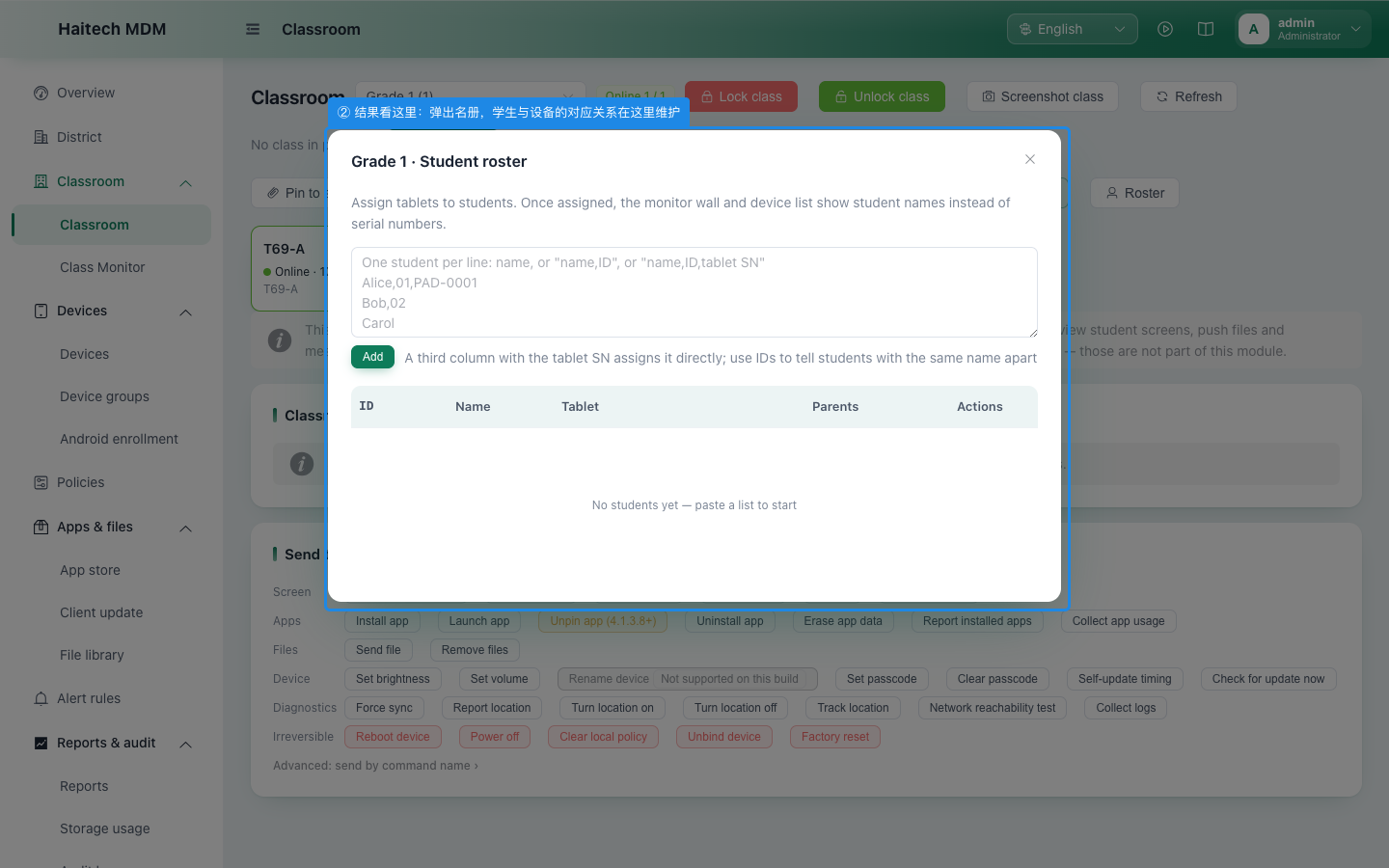
| 27Roster | Pick a class first | The «<class> · Student roster» dialog opens | Paste the list into the dialog to enrol students, one per line: name, or name,number, or name,number,tablet SN. Filling the third column with the SN binds the tablet directly. Once enrolled, the monitoring wall and the device list show the student's name instead of the device identifier |
Classroom monitoring (the wall)
Reached from «Classroom management → Classroom monitoring», or automatically after «Capture whole class». This is where you see every student screen.
| Button | When it can be used | What happens | Where to check | OK |
|---|---|---|---|---|
| 28Refresh round | Only while a class is in progress. Outside class it says «Start the class first» and sends nothing | Sends one capture to the whole class and says «Requested N devices / pushed successfully to M» | On this very page: one image per tablet, appearing over some ten seconds | |
| 29Reload images only | Always available | Reloads the existing captures; sends no command to the devices | The images on the page become the latest ones already stored on the server (no new capture is taken) | |
| 30View | Open one of the images first; the button appears once it is enlarged | Jumps to that device's detail page | On the device detail page you can act on that single device and view its task log |
Command panel
The «Send commands» area at the bottom of the device detail page; it also appears in the bulk actions of the device list and on the classroom page. Commands are grouped by purpose: screen / apps / files / device settings / status / irreversible.
| Button | When it can be used | What happens | Where to check | OK |
|---|---|---|---|---|
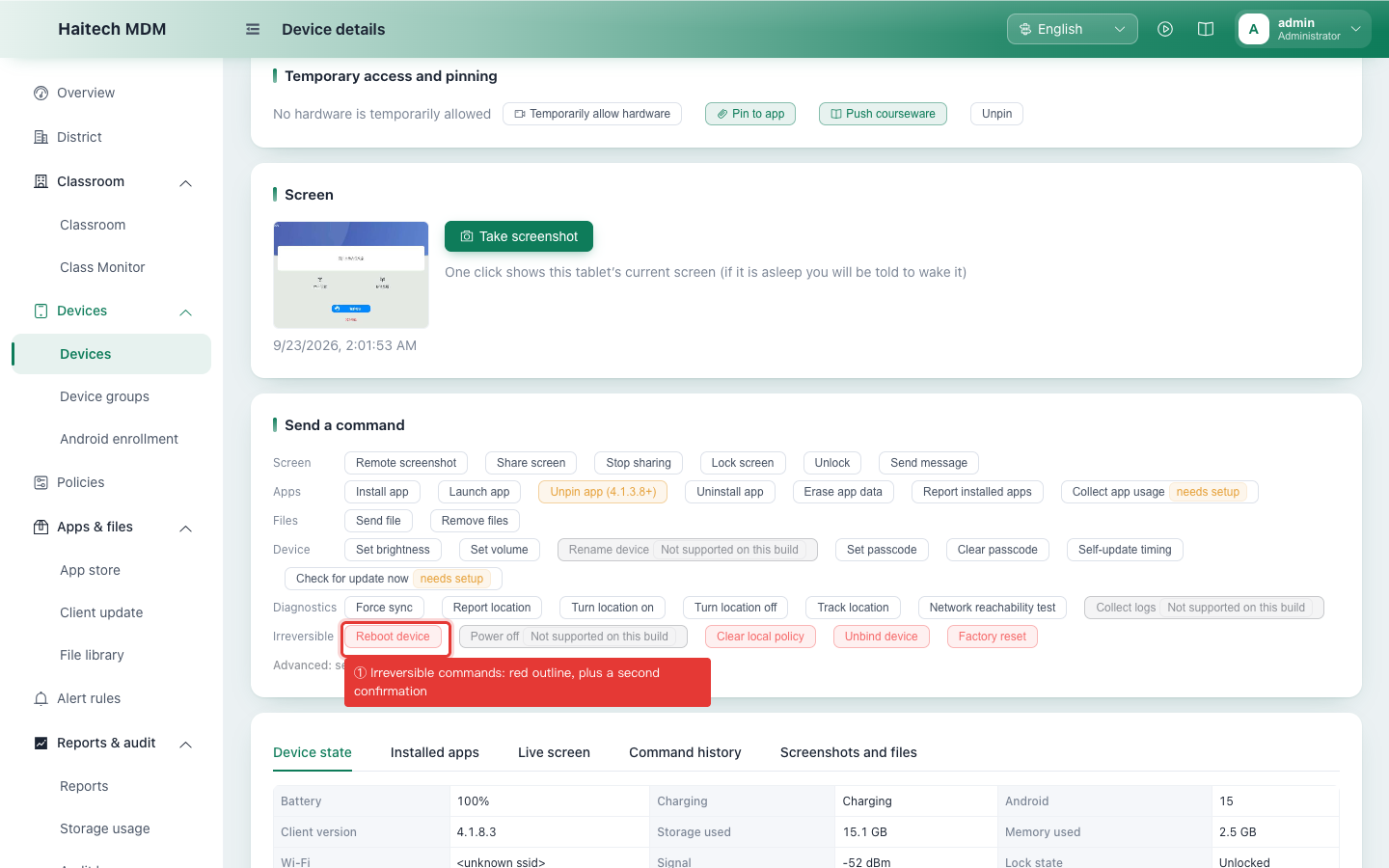
| 31The «irreversible» row (restart, clear local policies, unenrol, factory reset) | This whole row has a red outline and is clearly distinct from the five rows of ordinary commands above; it also asks for a second confirmation | The confirmation box states that the command cannot be undone | A record is kept in the «Send log» tab. ⚠️ «Unenrol device» takes the tablet out of management: it has to be provisioned again to come back | |
| 32Shut down, Capture logs (shown by device edition from 605) | Shut down is not shown on standard-edition tablets (a device owner has no shutdown API; use Restart instead); it appears only on 10-inch preinstalled (system) tablets. Capture logs works on both editions: on the standard edition it collects ClassPad's own run log | Capture logs: once uploaded you are told «ClassPad run log uploaded» with its size | A ClassPad-log-….zip appears in the device page's Files tab and can be downloaded. «Rename device» has been removed from the panel: to change the name shown in the console, use the field and «Save» at the bottom of the «Device status» tab | |
| 33«Collect app usage time» (marked «Needs setup»); «Check for update now» (shown depending on the tablet) | «Collect app usage time» can be clicked as usual — it works once the precondition is met; hover over the button to see what is needed. «Check for update now» needs a compatible firmware updater on the tablet; when the tablet reports it has none, the button is not shown (from 605) | If the precondition is not met the device reports a failure, and the reason says what is missing | «Collect app usage time» needs «Usage access» turned on for the tablet, which provisioning does automatically; on older tablets plug in USB and run classpad-provision -grant-usage. On tablets without the «Check for update now» button, check for firmware updates by hand in the tablet's system settings |
Verification screenshots
Two or three shots per button: the red frame marks where you click, the blue one where the result appears. Captured on a real device.
05 · Allow factory reset on this deviceDevice detail page
13 · Take screenshotDevice detail page
14 · SaveDevice detail page
21 · RefreshClassroom page
27 · RosterClassroom page
31 · The «irreversible» row (restart, clear local policies, unenrol, factory reset)Command panel
32 · Shut down, Capture logs (shown by device edition from 605)Command panel